
An introduction to Notion dashboards and how they can improve your productivity
January 6, 2023
Notion
2022 was a somewhat chaotic year for me but it was also my most organized and most productive year mostly because not only did I finally figure out how to use Notion, I also went crazy with the customization of my Notion pages. As both a freelancer and student, Notion changed my whole attitude towards how I approach both my personal tasks, work tasks, and all my other projects.
What is Notion?
Of all the hardest question to answer, this has to be top 3. Because Notion doesn’t do just one thing, it can be hard to define. Here’s how I once described it to a friend:
The Notion website describes it as:
At its simplest, a Notion page is a basic text editor and at its most advanced, it's a combination of 50+ content blocks including databases. Imagine Google Drive, Trello, Asana, Google Keep, Evernote and GitHub Wiki combined into one. That’s what Notion is and more.
Unlike your regular to-do list or notetaking app which allows you to write notes, add a checklist or maybe even pin a few images, Notion offers a lot more content options such as: Calendars, timelines, kanban boards, embed features, databases, code, web bookmarks, audio, video, and so much more.
What can you do with notion?
The possibilities of what you can do with Notion are a almost endless. While before, you had to have a whole bunch of other apps, now with Notion you can do everything.
Every Notion page is a blank canvas that can be transformed to fit the individual. You have the option of dragging and dropping 50+ content blocks (such as, Calendars, timelines, kanban boards, embeds, databases, code, web bookmarks, audio, video, and so much more) wherever you want.
Personally, I use Notion to make lists, track books I’ve read, manage money, plan, manage and write blog post content, manage client projects, manage school work, store code snippets and also as a digital planner. There are companies that use Notion as a collaboration tool, company wiki, and onboarding tool. I have also seen instances of Notion pages being used as portfolios, websites and client portals.
Basically anything that requires laying out information, keeping it organized and/or enabling it to be shared, Notion is the tool of choice.
How to use Notion for work:
- Track goals
- Manage projects/tasks
- Create design systems
- Track and Manage content
- Create automations and Integrations using the Notion API
How to use Notion as a student:
- Take notes
- Create to-dos and reminders
- Track progress on school work
- Manage class schedules
- Create a directory of linked notes, files and related URLs
How to use Notion for daily life:
- Periodic journaling
- Tracking individual income and expenses
- Managing a weekly agenda
- Digital yearly planner
- Organizing ideas
Why should you use Notion for Productivity?
- It’s a text editor. If all you want to do is take a few notes or make a list, all you have to do is click New page and start typing.
- But it’s much more than just a text editor. Text editing is Notion at its simplest. It has a whole lot of features that can take it from just a simple note taking app to an all-in-one productivity tool
- It’s highly customizable. This is one of the features that makes Notion such a great productivity tool. Everything in Notion is a block. Every heading, paragraph, list or embed is a block. This makes it easy to drag them around the page and arrange them any way you want.
- It makes organization fun. One thing I noticed was my pages beginning to come together whenever I added personal touches such as an anime gif that expresses my mood towards that topic, a fun emoji or a really cool animated header.
- It has a really clean and minimal interface. The Notion interface is really clean and simple. Yes, Notion packs a ton of functionality but the interface isn’t cluttered up with a bunch of menus and widgets. So even though functionality is easily accessible, it is hidden away until you actually need it.
- Notion is great for developers. What can I say? I have a dashboard filled with code snippets. Oh, and code highlighting supports up to 50+ languages. Need I say more?
- Notion is built for teams. Notion is a collaboration tool. You can easily reference a team member by just using @ links. Controlling who can access what is also easy with Notion.
- Notion databases are highly flexible. Notion database tables work just like spreadsheets. Except unlike Google Sheets, you can convert your database table to a list, a calendar, a kanban board, a timeline, or a gallery depending on which view you like.
- Embed anything. And I mean anything. In Notion you can embed anything from a simple pdf, to a google map, to a Figma file to a GitHub gist and so much more. Notion supports about 20 embeds
- Tons of template options. For Notion newbies, the functionality might be overwhelming but Notion helps you get started by providing you with in-app templates. Also Notion fans (like myself) have created a ton of templates, both free and paid, which you can also use.
- Notion is affordable. For most people, all you will ever need is the free version. Forever.
What is a Notion dashboard?
A Notion dashboard is a page on Notion where you can write, think and plan around a particular activity or set of activities. For example, I have a page which serves as my Editorial Dashboard. That particular page serves as a sort of homepage for all my writing, blogging and content creating activities. So it is a combination of all the other little pages linking to one big page. You can have a Finance dashboard that serves as a homepage for all things money (i.e. a page that houses all your income, expenses and budget pages). I also have a planner dashboard that houses my goals, page, my weekly dashboard, my editorial dashboard and several other pages.
How to set up Notion
Step 1: Go to notion.so and create an account. You can also sign up with the Google account you have logged into your device.
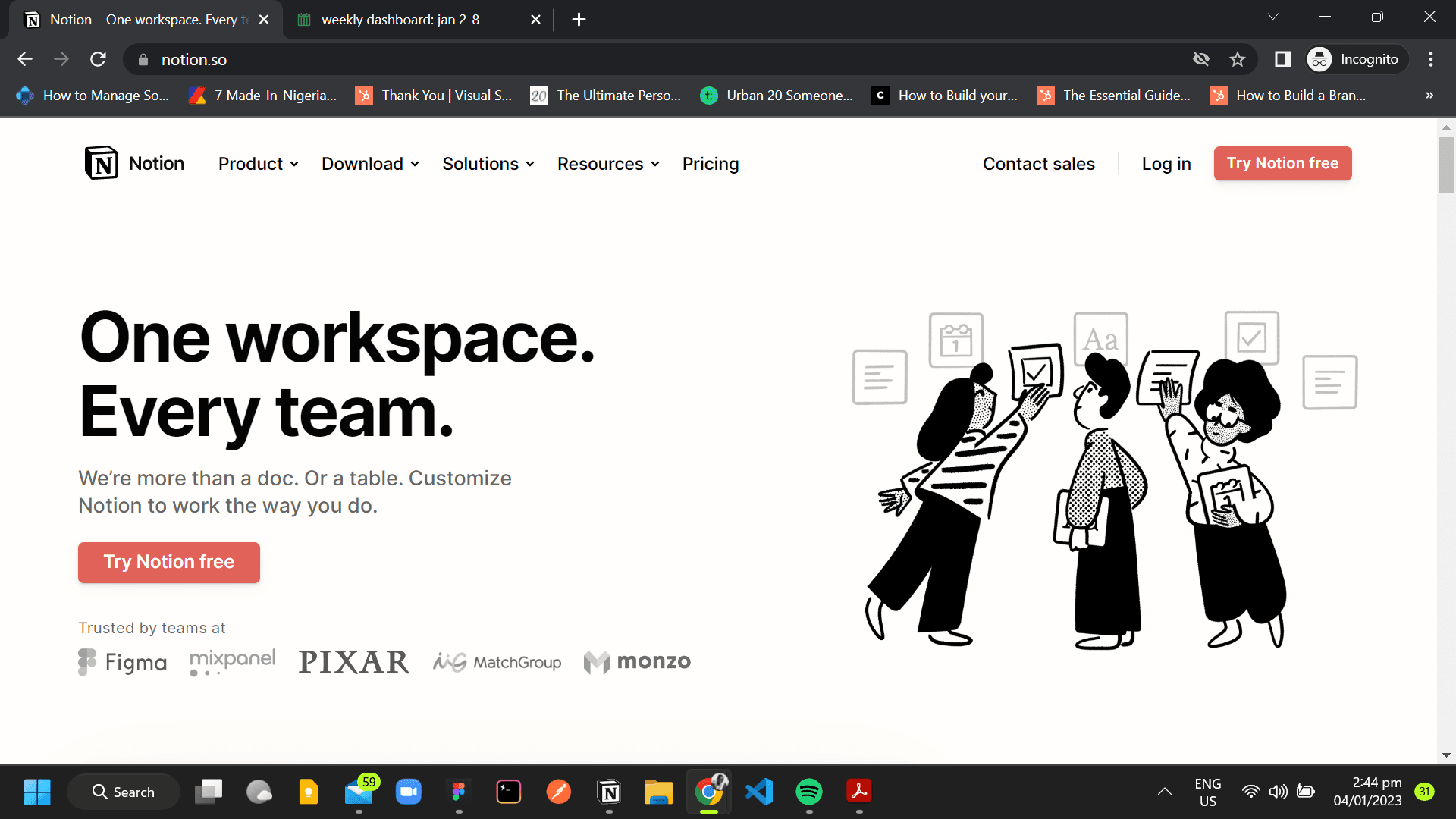
Step 2: Download the apps to your mobile (via Google Play Store or the Apple App Store) or to your desktop via notion.so/desktop.
While you can use Notion through a web browser, having the app, especially the one on your computer, is much easier. It gives you a bigger screen and more useful features. This helps you get more done, switch between tasks smoothly, edit things better, connect with other apps seamlessly, use your mouse and keyboard more accurately, and work even when you're not connected to the internet.
Step 3: Once you have everything setup, you’re ready to create your first page. At the bottom of your sidebar, click + New page. A brand new page will open up with options to view templates or pick a type of page to build.
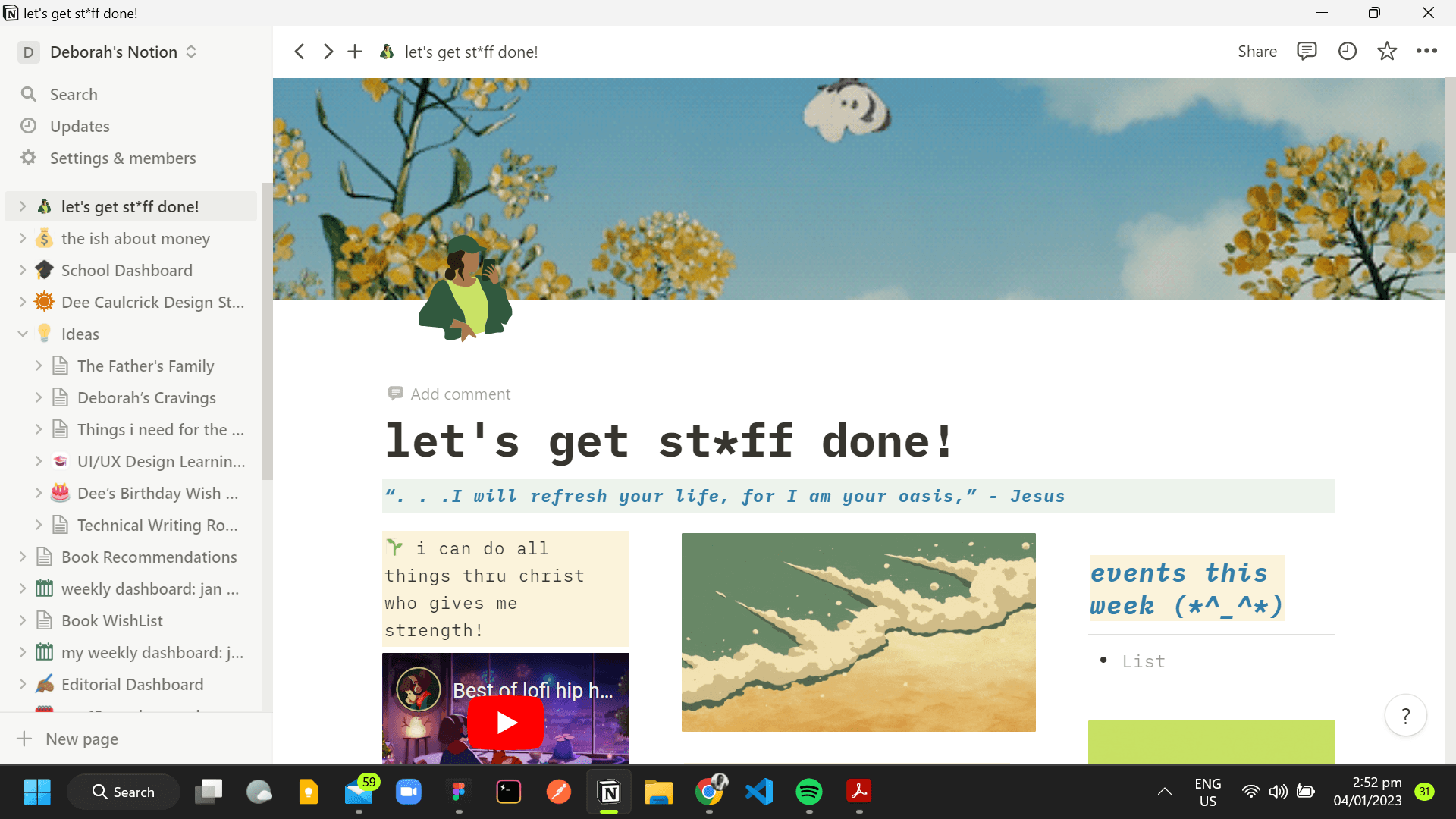
Step 4: Start with a template or just being typing.Use the “/ “ command to bring up a menu of blocks. You can add any block you want by typing its name after the “/” or scrolling to the one you want.
Free Notion dashboard template to get you started
Because I know how daunting it can be, I created a Notion template to help you manage your weekly agenda. It contains the following sections:
- A space to write down your weekly goals
- A space to manage tasks for each day
- Weekly habit tracker
- A calendar to track events
- A space for notes/brain dumps
Step 1: Get access to the template right here.
Step 2: On the top right, click Duplicate. If you aren’t signed in to your Notion, you will be prompted to sign in.
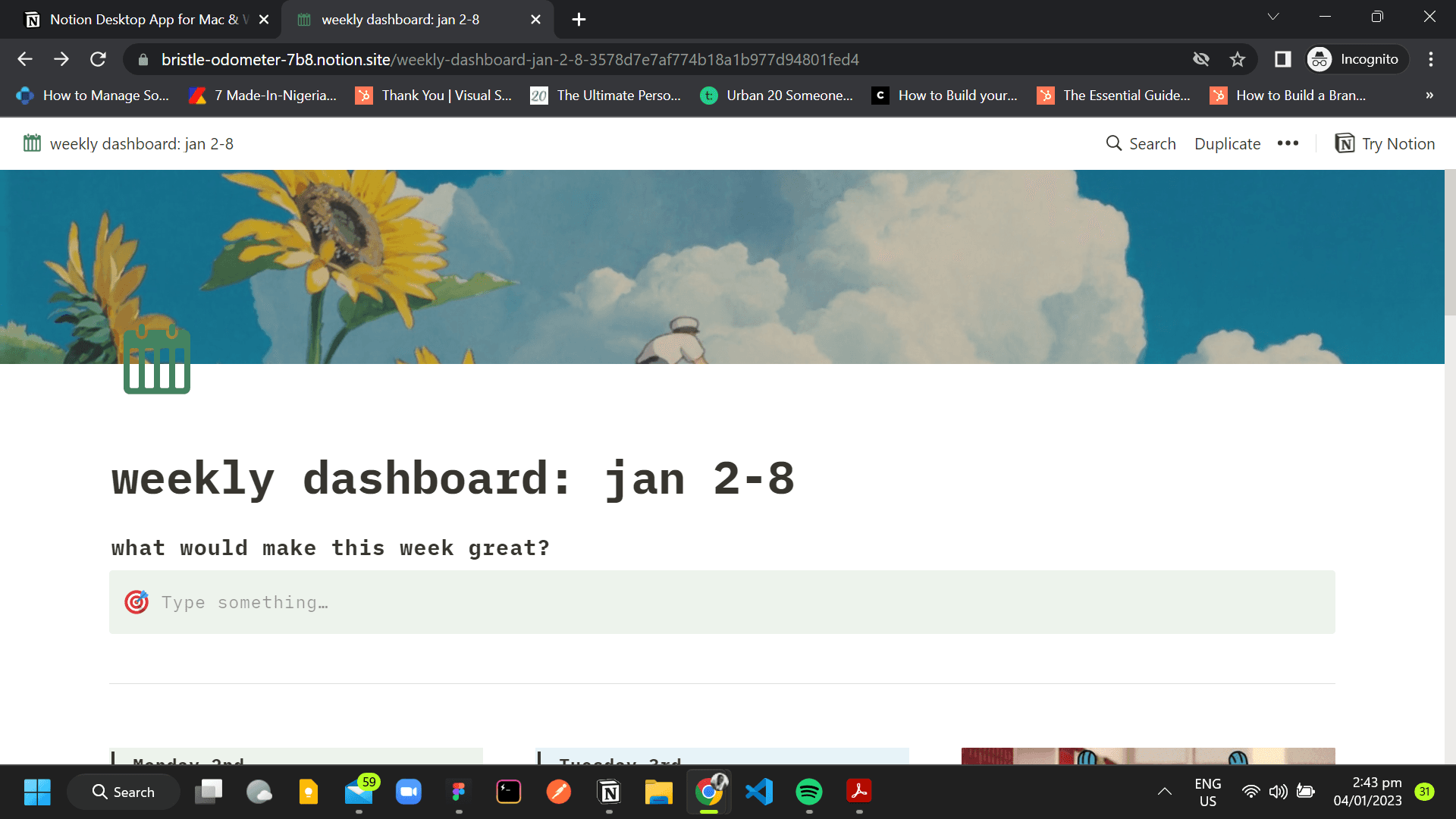
Step 3: Start using the template! You can play around with it, add or delete blocks, and change whatever you like.
Tip: Don’t try to edit the original template directly. You have to duplcate and edit your duplicated version. Even if you try editing my version, it won’t work 😆
Tips and Reminders for setting up a Notion dashboard
Notion has a lot of functionality, which is great. But if you’re like me, it’s easy to get overwhelmed by all the options so here are a few things to remember:
- Take it easy. You don’t have to use all the content blocks. Just take what you need at that moment
- It is okay for your Notion page to look “basic”. Start with functionality. You can make it pretty later.
In case you missed it, grab your free Notion weekly agenda template here.